Write your first CheeseBot script
Set up IntelliJ IDEA, run a Java script that writes to the log, then turn it into a basic woodcutter.
Install the Java 11 JDK
Install a Java Development Kit (JDK) before creating your project. We recommend Eclipse Temurin 11 for Windows.
On the download page, select JDK and download the Windows x64 MSI. Run the installer. The JDK includes the compiler you’ll use to build scripts.
Set Up Your Development Environment
1. Create a Java project
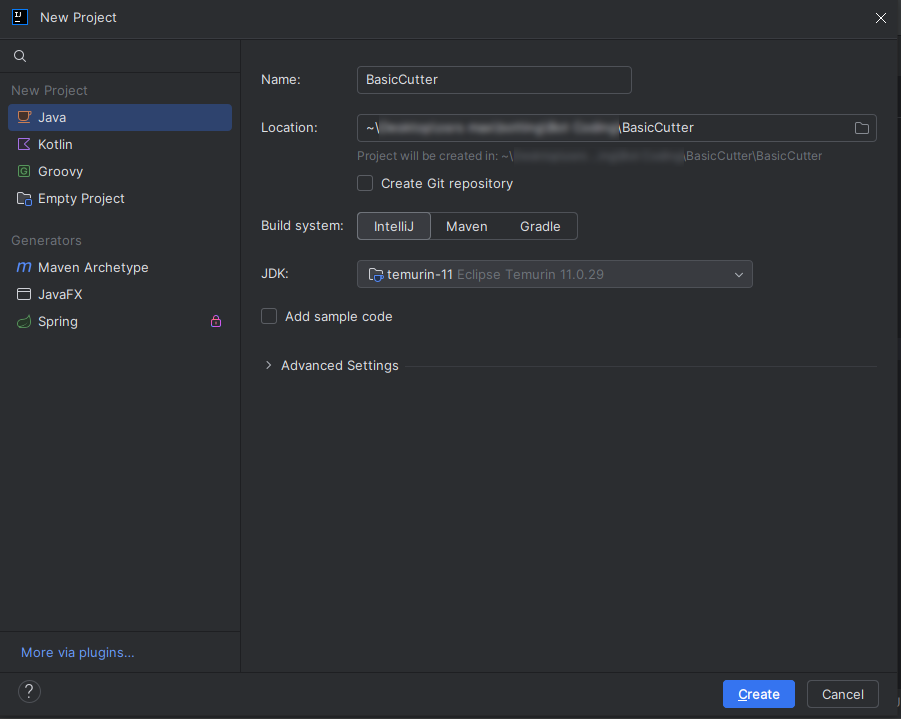
Open IntelliJ IDEA and choose New Project → Java. Name the project BasicCutter and set Build system to IntelliJ.
Choose the JDK you installed earlier. Turn off Add sample code and click Create.
2. Check the Java language level
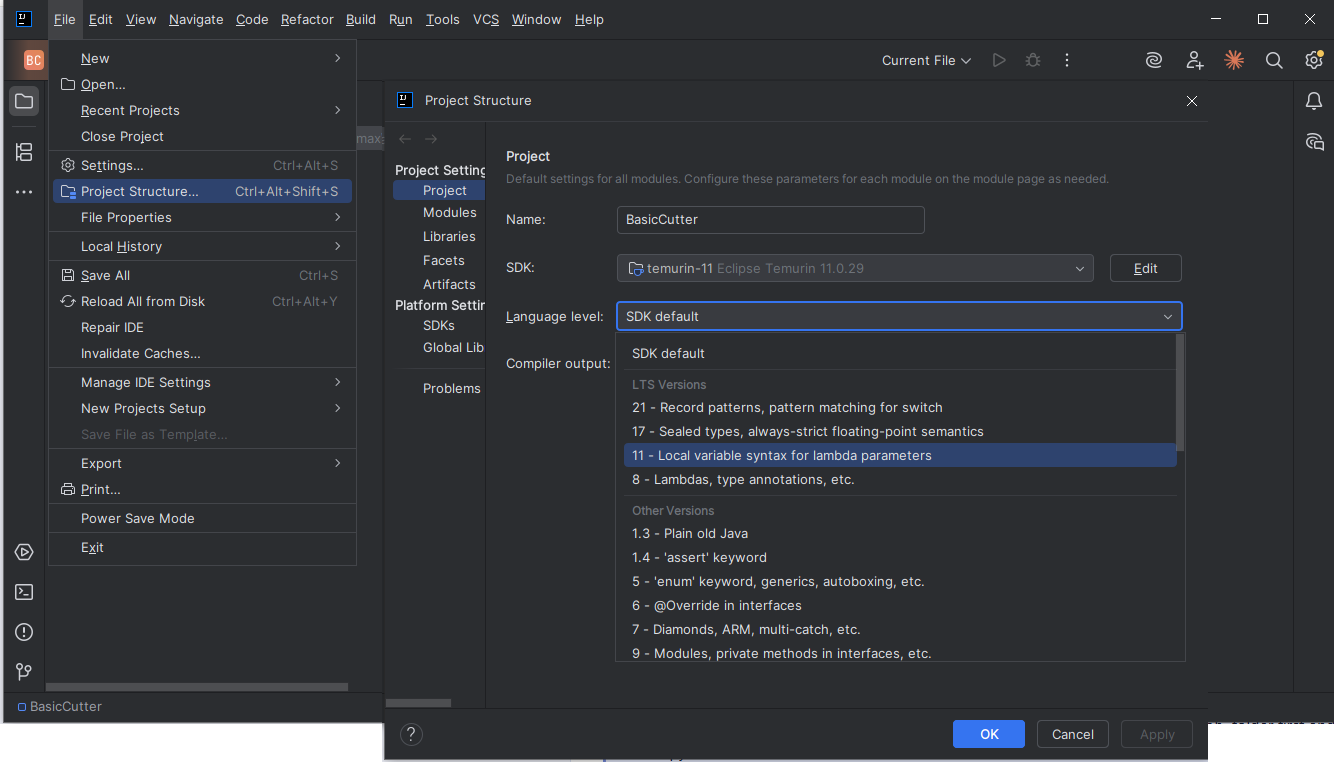
Open File → Project Structure → Project. Check that the SDK is JDK 11 and set Language level to 11. If the SDK is already JDK 11, SDK default selects the same language level.
3. Add the CheeseBot API
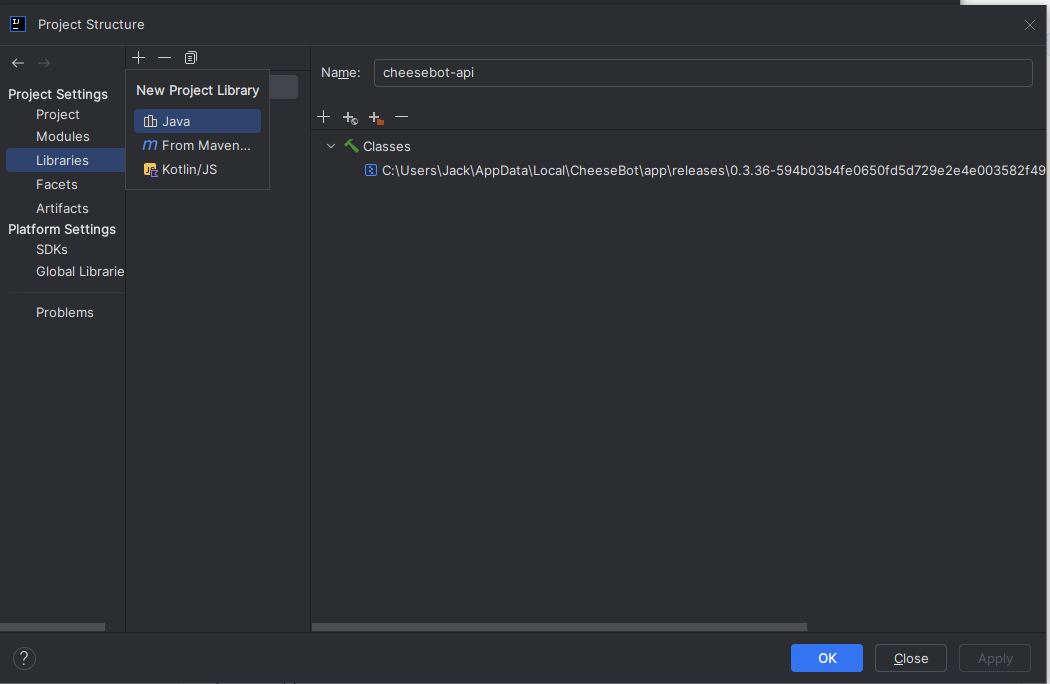
- In IntelliJ, open File → Project Structure → Libraries.
- Click + → Java and select
cheesebot-api.jar. It’s besideCheeseBot.exein your installed version’s folder under%LOCALAPPDATA%\CheeseBot\app\releases. - Choose the BasicCutter module when prompted. Under Modules → Dependencies, set the scope for
cheesebot-api.jar(listed ascheesebot-api) to Provided, then click Apply.
4. Set up the JAR artifact
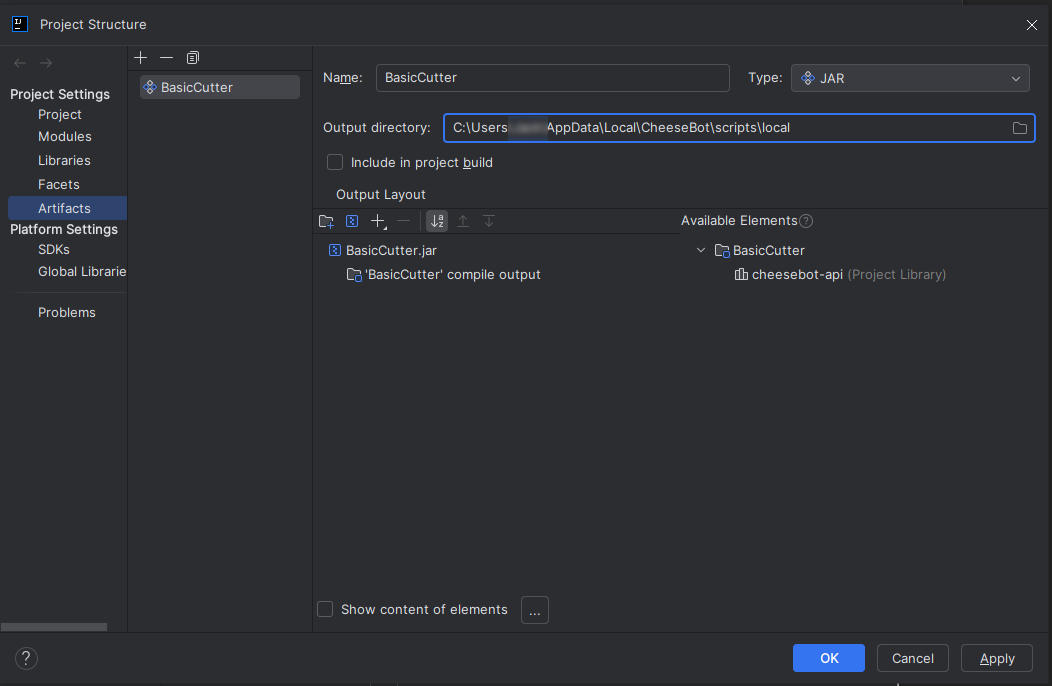
- Still on the Project Structure window, open the Artifacts tab on the left. Click + → JAR → Empty and name it
BasicCutter. - Under the Available Elements find your module's compile output and double click it to put it into the output root.
- Change the Output directory to CheeseBot’s Scripts directory. The path to the directory is
%LOCALAPPDATA%\CheeseBot\scripts\local.
Create a Simple Script
5. Create a Java class
In the Project panel, right-click src, choose New → Java Class, and enter Main.
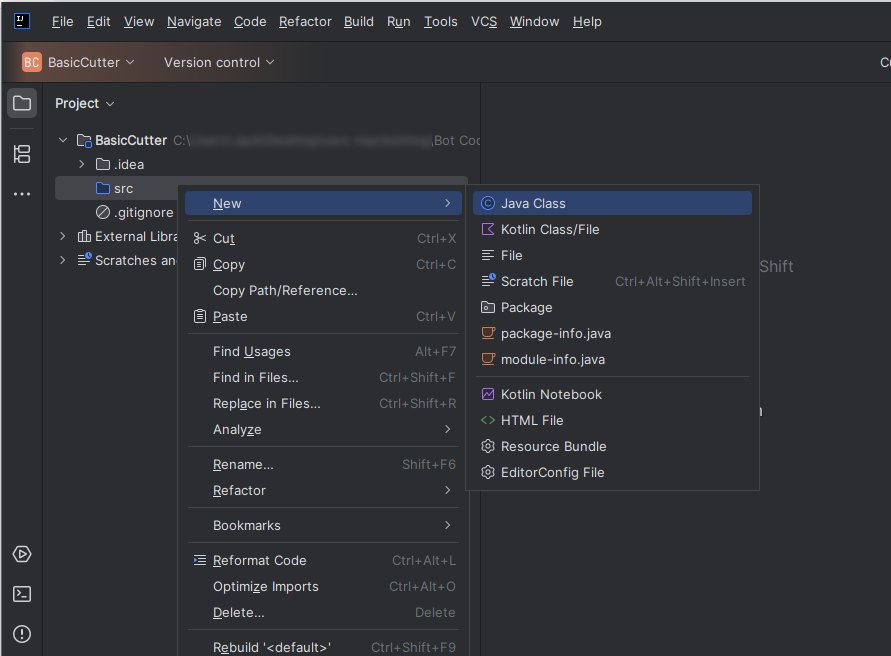
src folder.6. Look at the generated file
IntelliJ creates Main.java with an empty public class. The filename matches the class name.
public class Main {
}
7. Add the loop and script details
Extend AbstractScript so CheeseBot can run the class. The client calls onLoop() repeatedly. Returning 1000 waits one second before the next call.
The highlighted lines show what changed from the previous example.
Main.java · Basic loopimport com.cheesebot.api.AbstractScript;
public class Main extends AbstractScript {
@Override
public int onLoop() {
return 1000;
}
}Add @ScriptManifest
The annotation tells CheeseBot which class to load and supplies the details displayed in Script Manager. Set the name, author, description, category, and version. The version is a string, so write "1.0" in quotes.
import com.cheesebot.api.AbstractScript;
import com.cheesebot.api.Category;
import com.cheesebot.api.ScriptManifest;

@ScriptManifest(
        name = "Basic Cutter",
        author = "Bob",
        description = "Chops trees for logs.",
        category = Category.WOODCUTTING,
        version = "1.0")
public class Main extends AbstractScript {
    @Override
    public int onLoop() {
        return 1000;
    }
}
8. Write a message to Logs
Import Logger and call Logger.log() inside onLoop(). This complete file gives you a visible way to check that the script is running before adding game actions.
import com.cheesebot.api.AbstractScript;
import com.cheesebot.api.Category;
import com.cheesebot.api.Logger;
import com.cheesebot.api.ScriptManifest;

@ScriptManifest(
        name = "Basic Cutter",
        author = "Bob",
        description = "Chops trees for logs.",
        category = Category.WOODCUTTING,
        version = "1.0")
public class Main extends AbstractScript {
    @Override
    public int onLoop() {
        Logger.log("My first script!");
        return 1000;
    }
}
9. Build and run the script
In IntelliJ, choose Build → Build Artifacts → BasicCutter → Build.
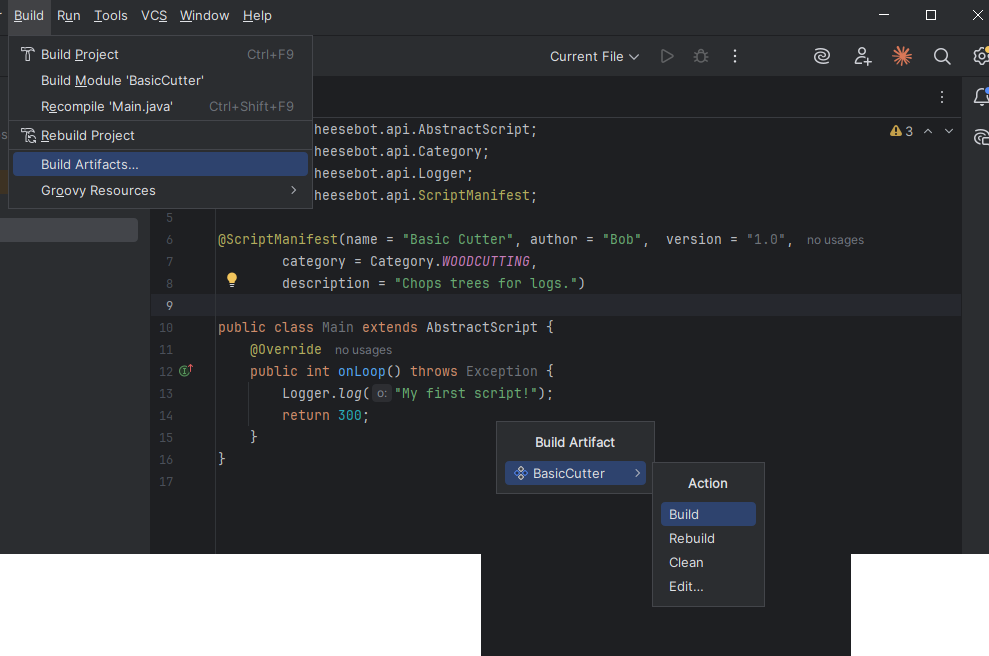
BasicCutter.jar.Find it in Script Manager
In CheeseBot, open Script Manager, choose Local from the source menu, and click Refresh. Search for Basic Cutter, select a saved account, and click Start.
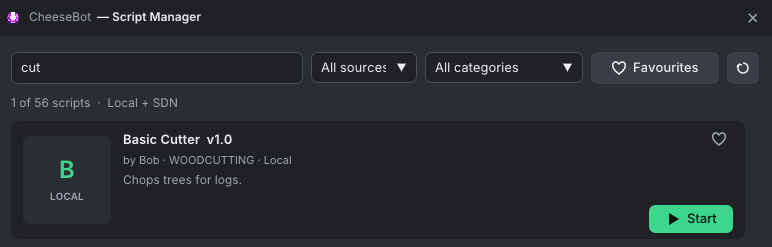
@ScriptManifest.Check the log
Open Logs. With our example, My first script! appears about once a second. Press Stop when you’ve confirmed it works.
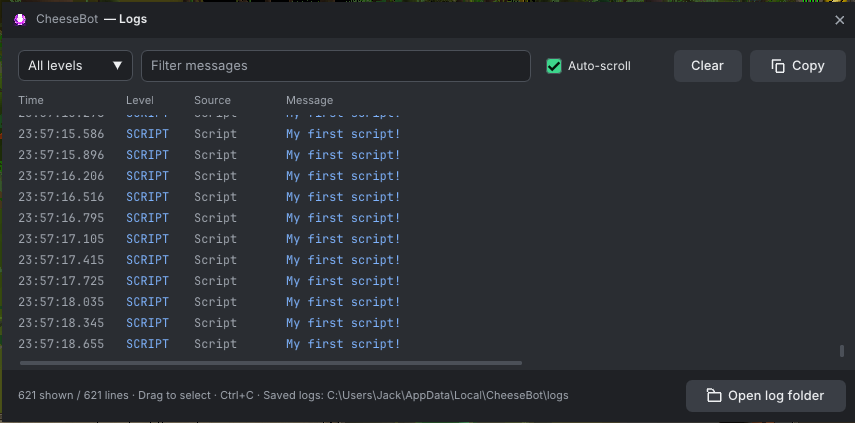
onLoop().If the script doesn’t appear
Click Open folder and check for BasicCutter.jar. Confirm the artifact includes the module’s compile output and Main.java has @ScriptManifest. Build again and refresh.
Once the logging test works, let’s turn it into a woodcutting script.
1. Find and chop a tree
Start with GameObjects.closest("Tree"). It returns the nearest object named Tree, or null if there isn’t one. When it finds a tree, use tree.interact("Chop down") to click that action.
Replace the logging example in Main.java with this version.
import com.cheesebot.api.AbstractScript;
import com.cheesebot.api.Category;
import com.cheesebot.api.GameObject;
import com.cheesebot.api.GameObjects;
import com.cheesebot.api.ScriptManifest;

@ScriptManifest(
        name = "Basic Cutter",
        author = "Bob",
        description = "Chops trees for logs.",
        category = Category.WOODCUTTING,
        version = "1.0")
public class Main extends AbstractScript {
    @Override
    public int onLoop() {
        GameObject tree = GameObjects.closest("Tree");
        if (tree != null) {
            tree.interact("Chop down");
        }
        return 1000;
    }
}
2. Wait while moving or chopping
The script now clicks the nearest tree every 1000 ms. We want it to wait while the player is already chopping.
Get the local player with Players.getLocal() and check isMoving() and isAnimating() before looking for another tree. If the player is busy, return 1000; skips the tree click for this loop and checks again in one second.
import com.cheesebot.api.AbstractScript;
import com.cheesebot.api.Category;
import com.cheesebot.api.GameObject;
import com.cheesebot.api.GameObjects;
import com.cheesebot.api.Player;
import com.cheesebot.api.Players;
import com.cheesebot.api.ScriptManifest;

@ScriptManifest(
        name = "Basic Cutter",
        author = "Bob",
        description = "Chops trees for logs.",
        category = Category.WOODCUTTING,
        version = "1.0")
public class Main extends AbstractScript {
    @Override
    public int onLoop() {
        Player me = Players.getLocal();
        if (me == null || me.isMoving() || me.isAnimating()) {
            return 1000;
        }

        GameObject tree = GameObjects.closest("Tree");
        if (tree != null) {
            tree.interact("Chop down");
        }
        return 1000;
    }
}
3. Try it near regular trees
- Stop the logging example if it’s still running. Use Build → Build Artifacts → BasicCutter → Build again to update the same JAR.
- Bring a usable axe, leave room for logs, and stand near regular trees. Close any open dialogs.
- Refresh Script Manager → Local, then start Basic Cutter. Watch it chop a few logs, then press Stop.
4. Drop logs when the inventory is full
After the player check, use Inventory.isFull() to choose what to do. When the inventory is full, Inventory.dropAll("Logs") drops the regular logs and keeps your axe and other items. The else branch runs the chopping code while there’s still room for logs.
import com.cheesebot.api.AbstractScript;
import com.cheesebot.api.Category;
import com.cheesebot.api.GameObject;
import com.cheesebot.api.GameObjects;
import com.cheesebot.api.Inventory;
import com.cheesebot.api.Player;
import com.cheesebot.api.Players;
import com.cheesebot.api.ScriptManifest;

@ScriptManifest(
        name = "Basic Cutter",
        author = "Bob",
        description = "Chops trees for logs.",
        category = Category.WOODCUTTING,
        version = "1.0")
public class Main extends AbstractScript {
    @Override
    public int onLoop() {
        Player me = Players.getLocal();
        if (me == null || me.isMoving() || me.isAnimating()) {
            return 1000;
        }

        if (Inventory.isFull()) {
            Inventory.dropAll("Logs");
        } else {
            GameObject tree = GameObjects.closest("Tree");
            if (tree != null) {
                tree.interact("Chop down");
            }
        }
        return 1000;
    }
}
Use this version of Main.java and repeat the build and start steps. Watch the inventory fill, then check that the script drops the logs and goes back to chopping.